
Sign up for Compass AI and invite your team
Date: 2026-10-16Overview
This guide explains how to create your Compass AI account, sign in, and invite colleagues to your organization. By the end of this guide, you will have:- created a Compass AI account;
- signed in to Compass AI;
- opened your organization’s administration page; and
- sent an invitation to a colleague.
Before you start
Make sure you have:- access to your work email;
- your work Microsoft account credentials, if Microsoft sign-in is available to you;
- your company details if you register using email; and
- the full name and work email address of any colleague you want to invite.
Recommended: Use your work Microsoft account to sign up. Use email registration only if Microsoft sign-up is not available to you.
Step 1: Open the free trial page
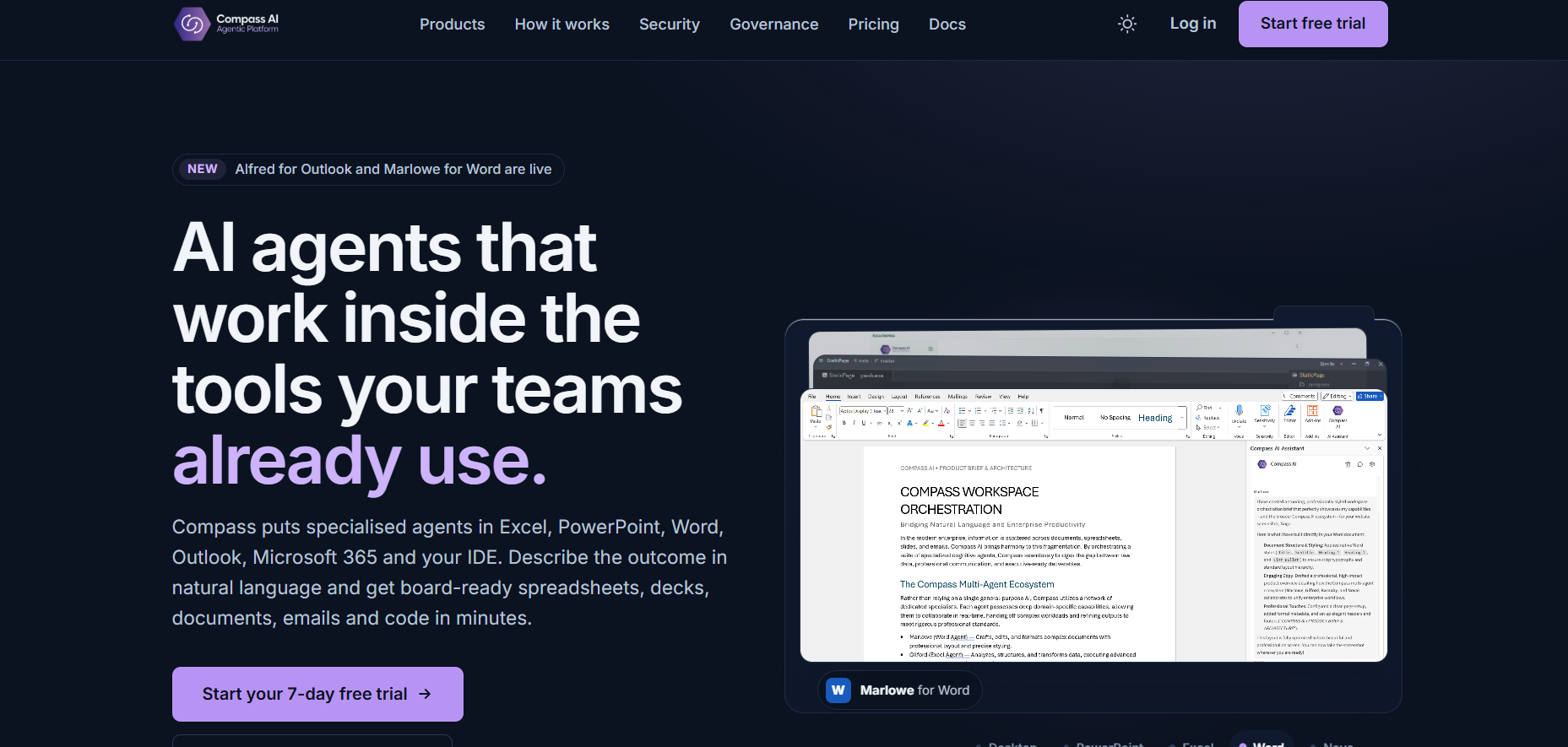
- Go to the Compass website.
- Select the free trial button in the top-right corner of the page.
Step 2: Create your account
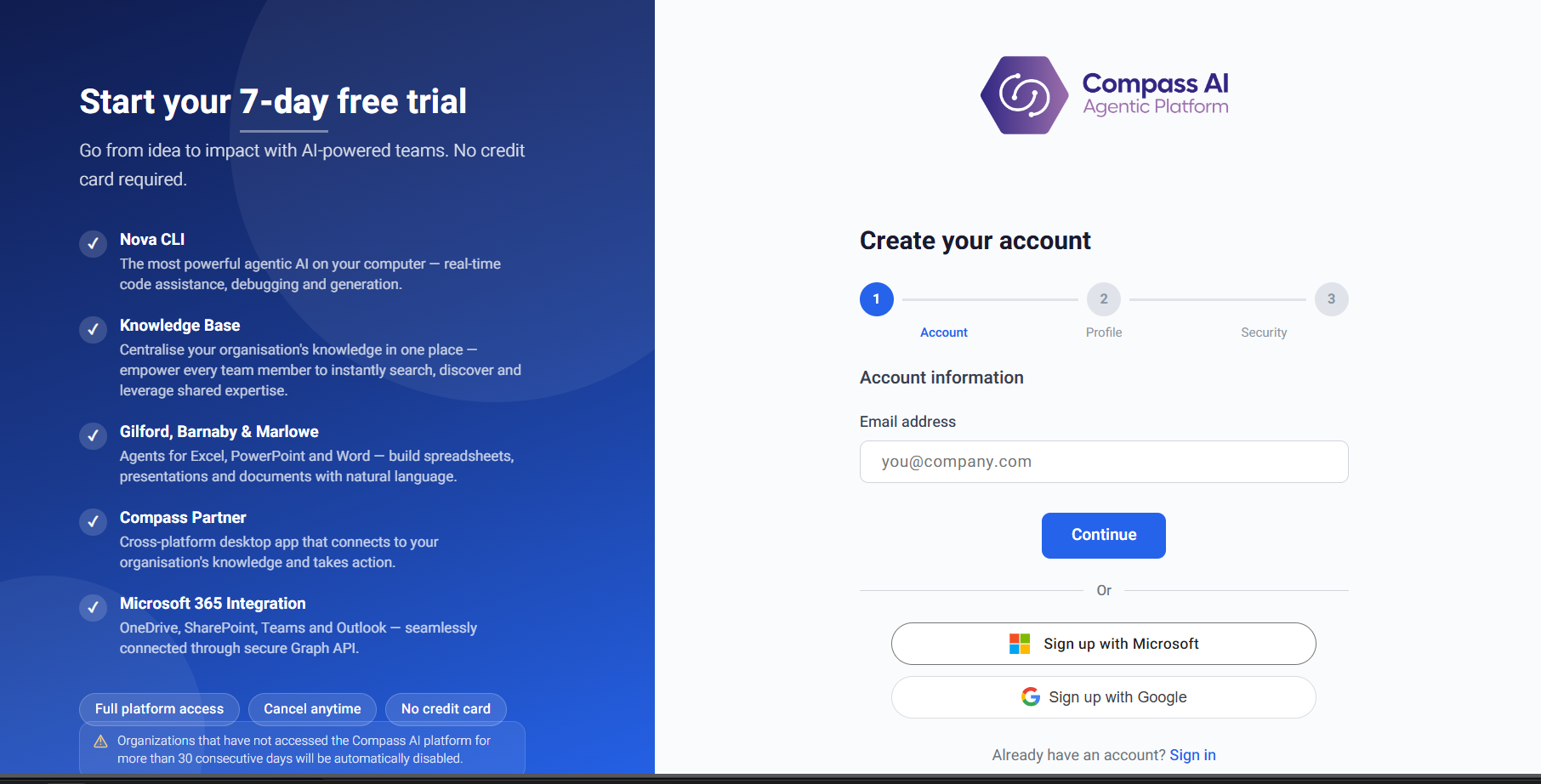
Choose the registration method that applies to you.Sign up with Microsoft — recommended
- Select Sign up with Microsoft.
- Sign in with your work Microsoft account.
- Follow the prompts to complete registration.
Sign up with email
If Microsoft sign-up is not available:- Enter your work email address and select Continue.
- Follow the registration steps to enter your profile and company details and set a password.
- Check your inbox for the Compass verification email.
- Follow the link in that email to verify your email address.
Step 3: Sign in to Compass AI
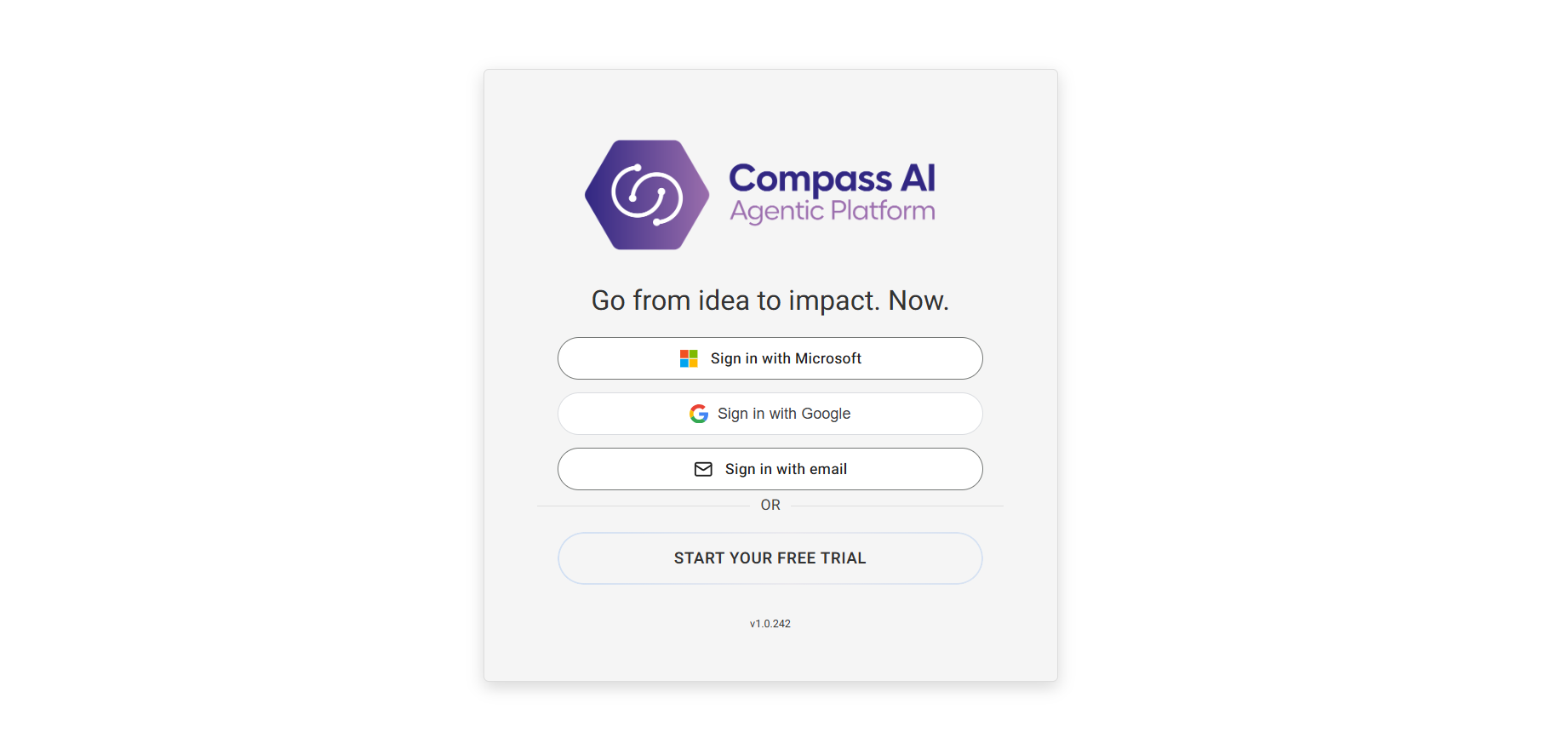
- Open the Compass sign-in screen after completing registration.
- Sign in using the same method you used to create your account: your work Microsoft account or your email address and password.
- Complete any additional sign-in prompts.
Step 4: Open your organization
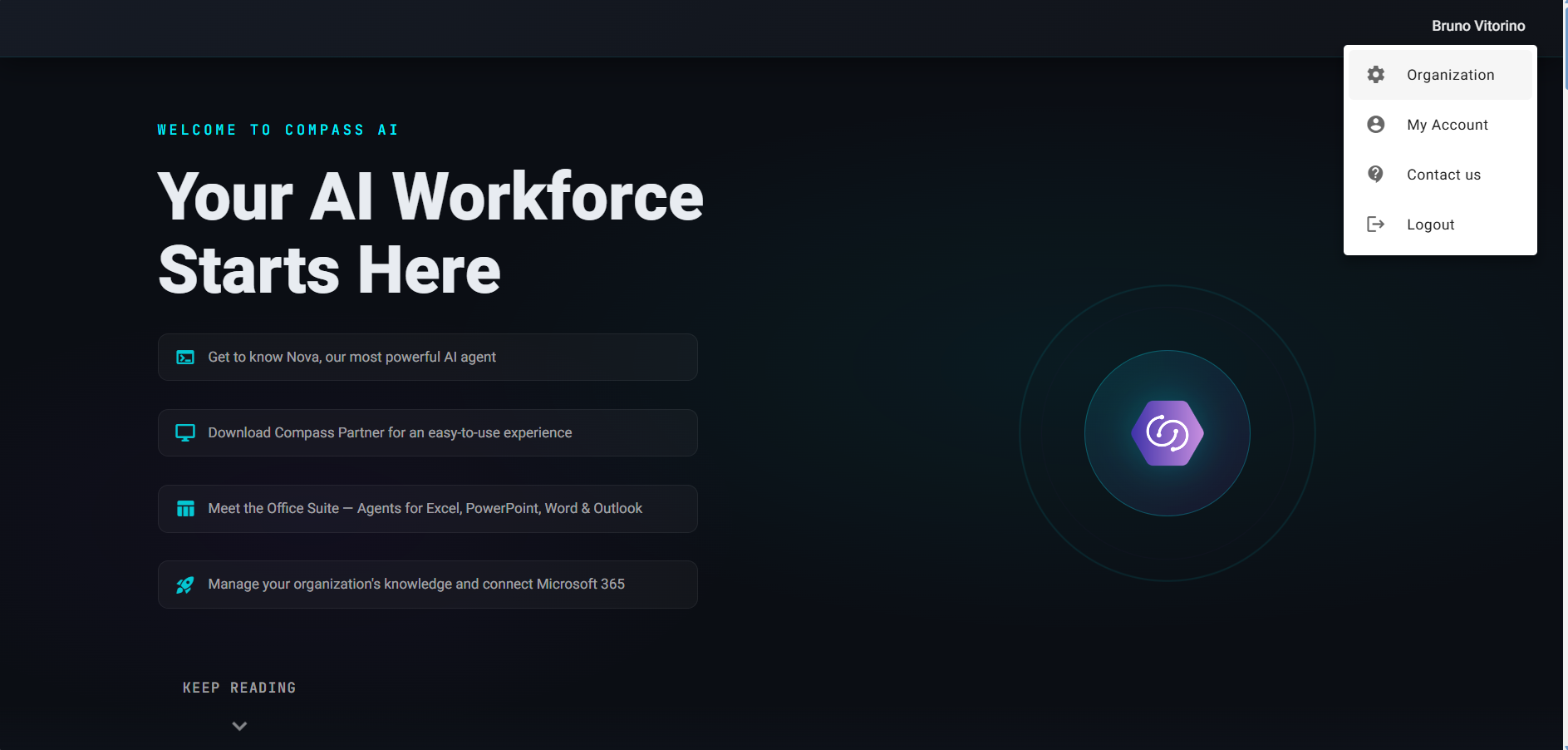
- On the Compass welcome page, select your name in the top-right corner.
- Select Organization from the menu.
Step 5: Invite a colleague
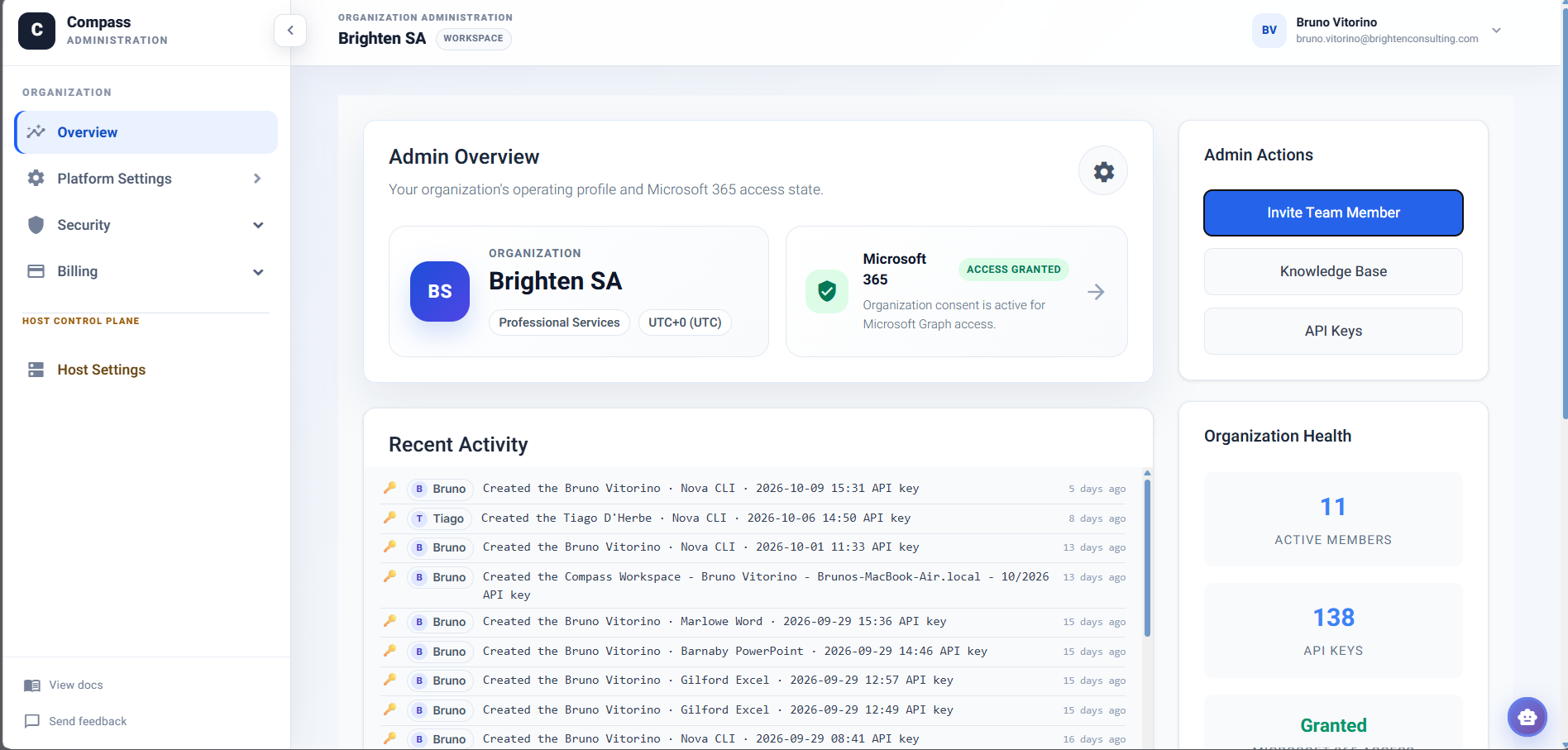
- On the organization Overview page, find the Admin Actions panel.
- Select Invite Team Member.
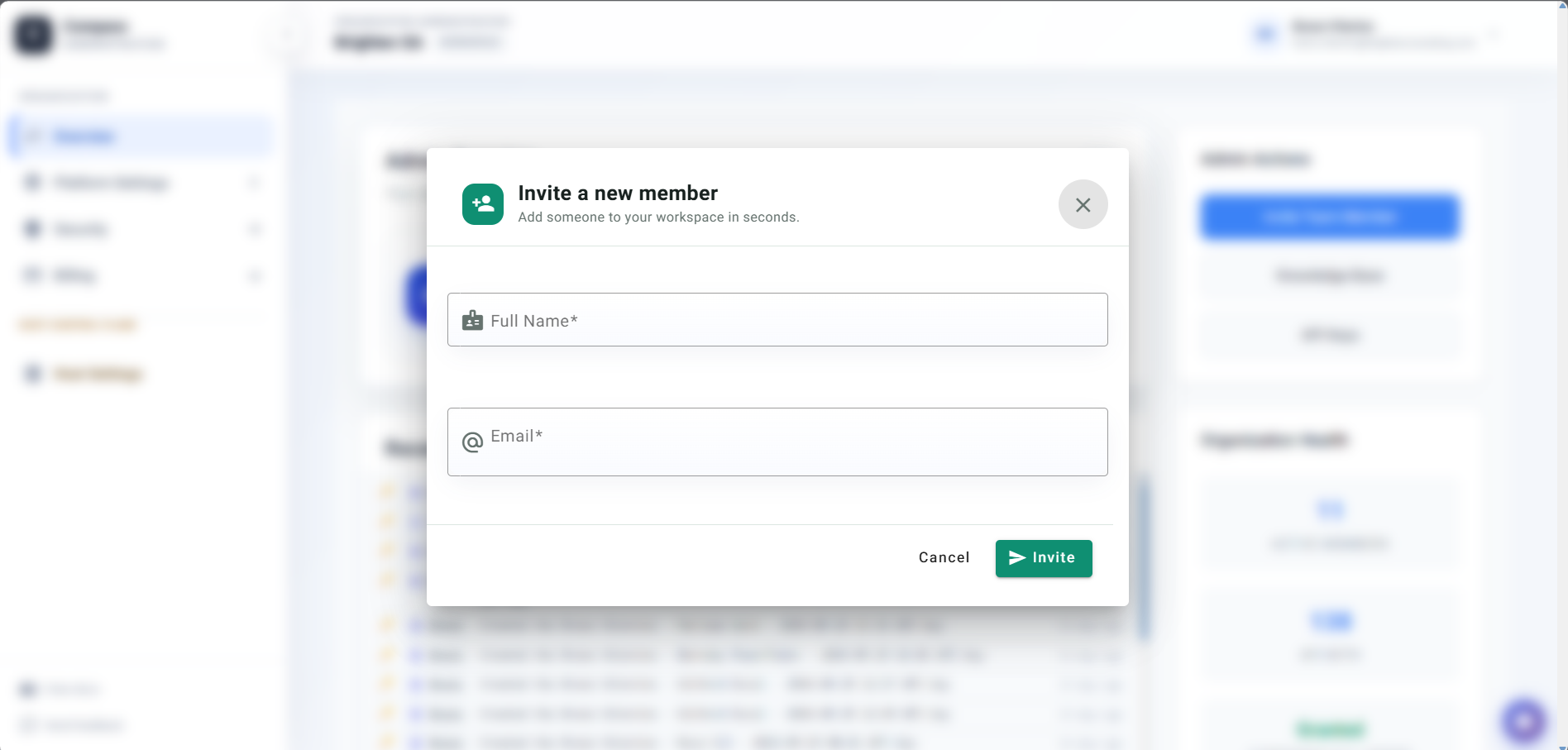
- In the Invite a new member dialog, enter your colleague’s Full Name and work Email address.
- Check that both details are correct.
- Select Invite to send the invitation.
 Ask your colleague to check their inbox and follow the invitation instructions to join your organization. Repeat this step for each colleague you want to invite.